Day 1
Training Manual
Bodno ID Card Software & Magicard Printers
Technical Support Reference Guide
💡 Press ? for keyboard shortcuts | / to search | M for menu
A 20-digit alphanumeric code issued by Bodno as a replacement for the USB dongle.
📅 Released: March 1, 2023 (Printer & Software) | April 2023 (Amazon orders)
Key Points
- Registration: Register at bodno.com/pages/register-your-printer to receive code via email
- One computer only: Case-sensitive, can only be active on one computer at a time
- Validity: Top Promoting Printers = lifetime | Non-Top Promoting = 3 years
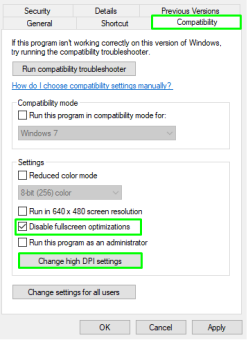
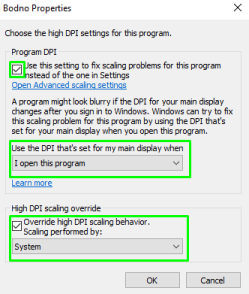
If Bodno software displays incorrectly or appears blurry:
- Right-click Bodno shortcut → Properties
- Check "Disable Fullscreen optimizations" → Click "Change high DPI settings"
- Set Program DPI to "I Open this program" and High DPI override to "System"
- Click OK, save, and reopen software
💡 Still having issues? Contact support@bodno.com
Step 1: Try Deactivating on Old Computer
- Open Bodno → BOD → Bodno License → Activation Code → Deactivate
Step 2: Request Reset from Cardpresso
If old computer unavailable (dead, reformatted, lost):
- Get customer's activation code
- Email Cardpresso to request reset
⚠️ IMPORTANT: Cardpresso allows only 3 resets per license. Customer must use latest software version.
Email Template
Subject: License Maximum Activations Reached (XXXX-XXXX-XXXX-XXXX-XXXX)
Hi Cardpresso,
I am writing to request a reset for the above Activation Code. The original computer is no longer active and deactivation is not possible.
Thank you,
[Your Name]
- Click OK to dismiss the message
- Check upper-left corner for edition. If missing: close → unplug USB → replug → reopen
- Update to latest software version
- Clean install: Uninstall → Delete Bodno folders → Restart → Reinstall
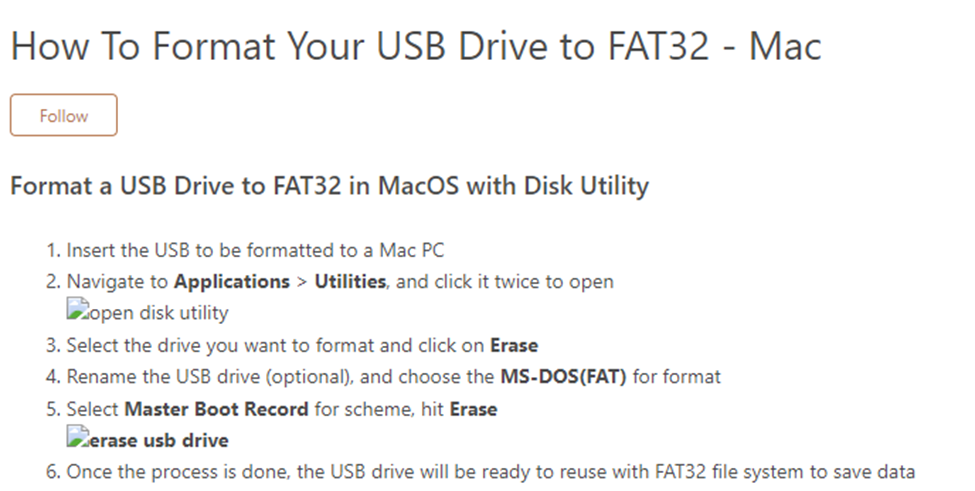
- If nothing works, reformat USB dongle
💡 Remember: Save card templates before uninstalling!
- Control Panel → Uninstall a program → Right-click Bodno → Uninstall/Change
- Check both checkboxes in uninstall dialog
- Delete Bodno folders from:
%programdata%%programfiles(x86)%%localappdata%
- Reinstall as Administrator for all users
| Silver | Gold | Platinum |
|---|
• 1D Barcodes
• QR Codes |
• Silver features +
• 2D Barcodes
• Auto Face Detection
• Auto Face Crop
• SD Card Import |
• Gold features +
• Smart Card Coding
• Fingerprint Support
• Photo Audit Logs
• ODBC Database |
- Press Windows + R → Type
services.msc → Enter
- Find Print Spooler → Right-click → Stop
- Go to
C:\Windows\System32\spool\PRINTERS → Delete all files
- Back to Services → Right-click Print Spooler → Start
If printer isn't recognizing ribbon:
1. Install Magicard Support Utility
Download: support.magicard.com/solution/magicard-support-utility/
⚠️ DO NOT run installer from browser. Save first, then run.
2. Calibrate
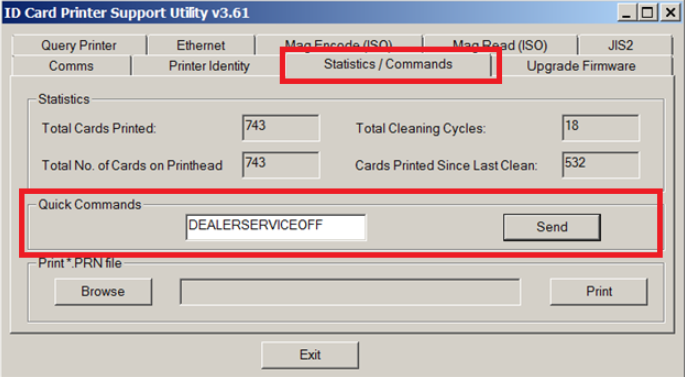
- Open Utility → Select USB → Choose printer
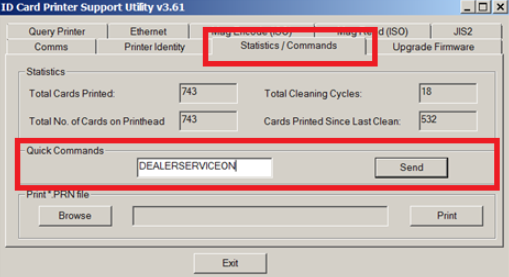
- Type
DEALERSERVICEON → Send
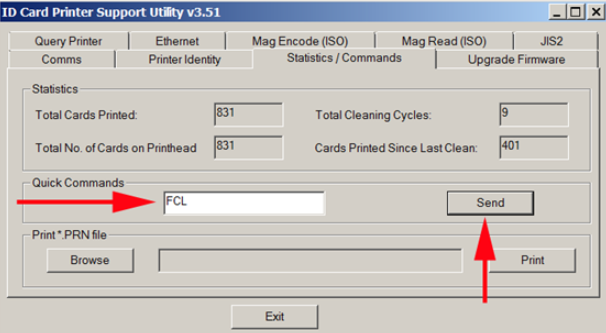
- Statistics/Commands tab → Type
FCL → Send
- Wait for restart, then type
DEALERSERVICEOFF → Send
📌 Pronto Gen 2: Remove film, close lid, press button 4x, insert card. Run 4 min, power cycle with film.
Magicard 600
- Open lid, remove film
- On LCD: Menu → Hold two middle buttons 6 sec
- Menu options change → Scroll to Calibrate → OK
Magicard 300
- Leave 1 card in hopper
- Open lid, remove film, leave lid open
- Click Menu once (shows "clean rollers" and "1/3")
- Hold both buttons 6 sec until 1/3 changes to 1/5
- Close lid → Menu → Soak → Soak Printer (~4 min)
Enduro 3E
- Keep film in, lid closed
- Support Utility → Statistics/Commands →
FCL → Send
- Wait 30 seconds for motor noise to stop
Pronto 100
- Remove film, close lid
- Press power button 4 times
- Replace film when done
- Remove ribbon, keep cover open
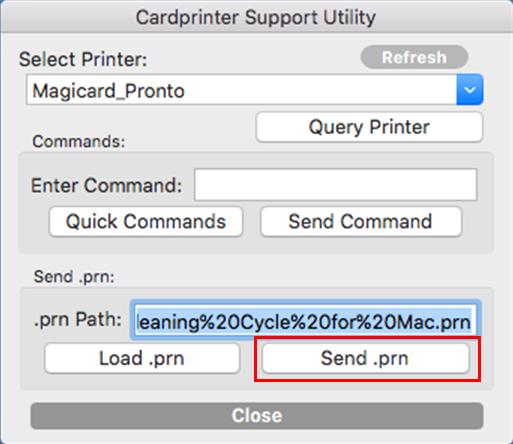
- Download Cleaning Cycle for Mac.prn from alphacard.com
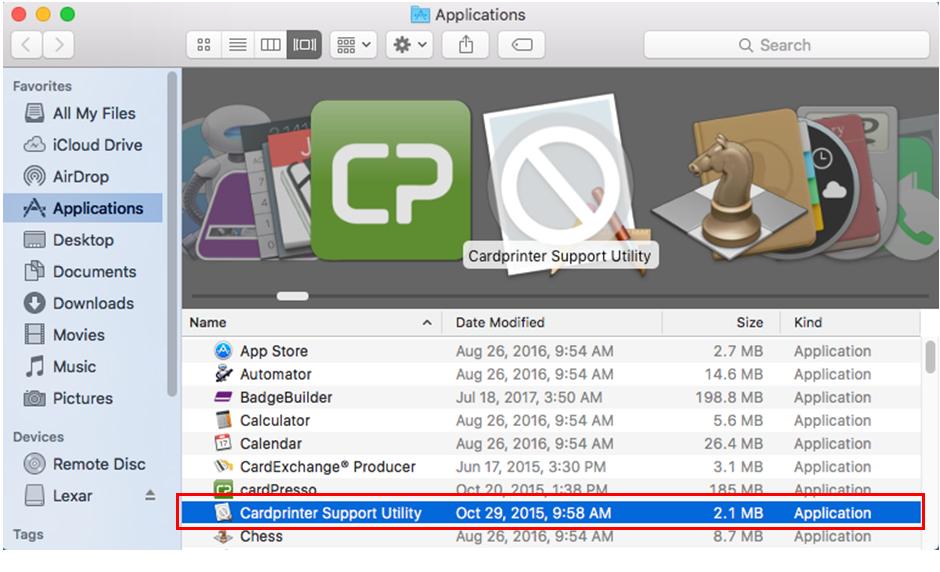
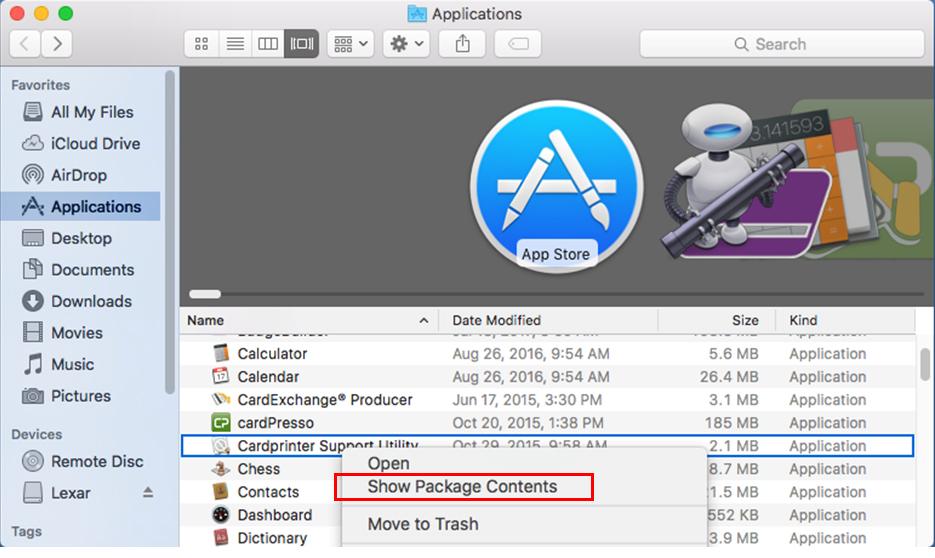
- Finder → Applications
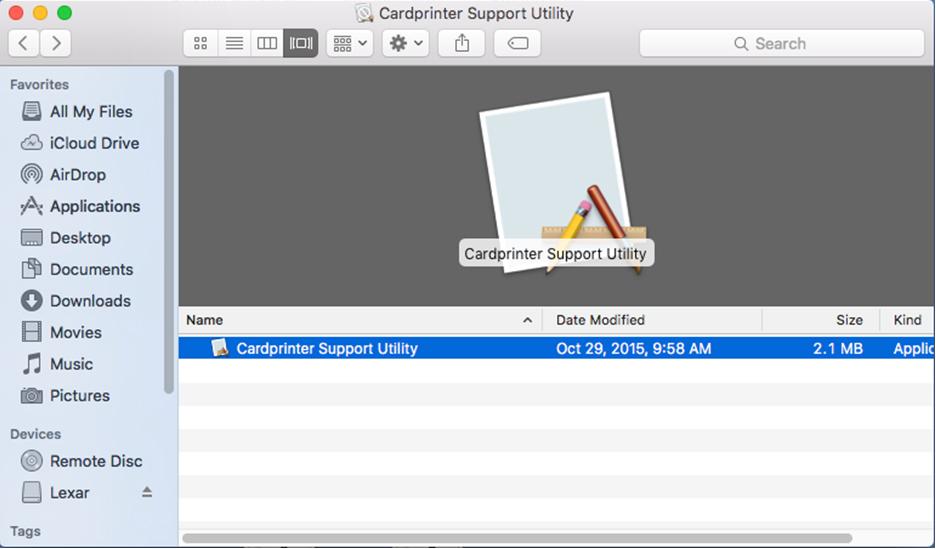
- Right-click Card Printer Support Utility → Show Package Contents
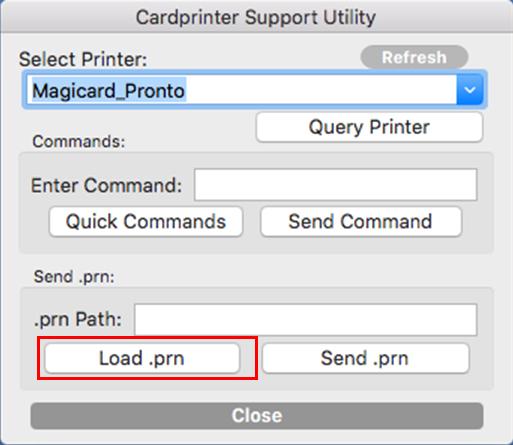
- Open Card Printer Command Utility
- Select Pronto → Load .prn → Browse to cleaning file → Send .prn
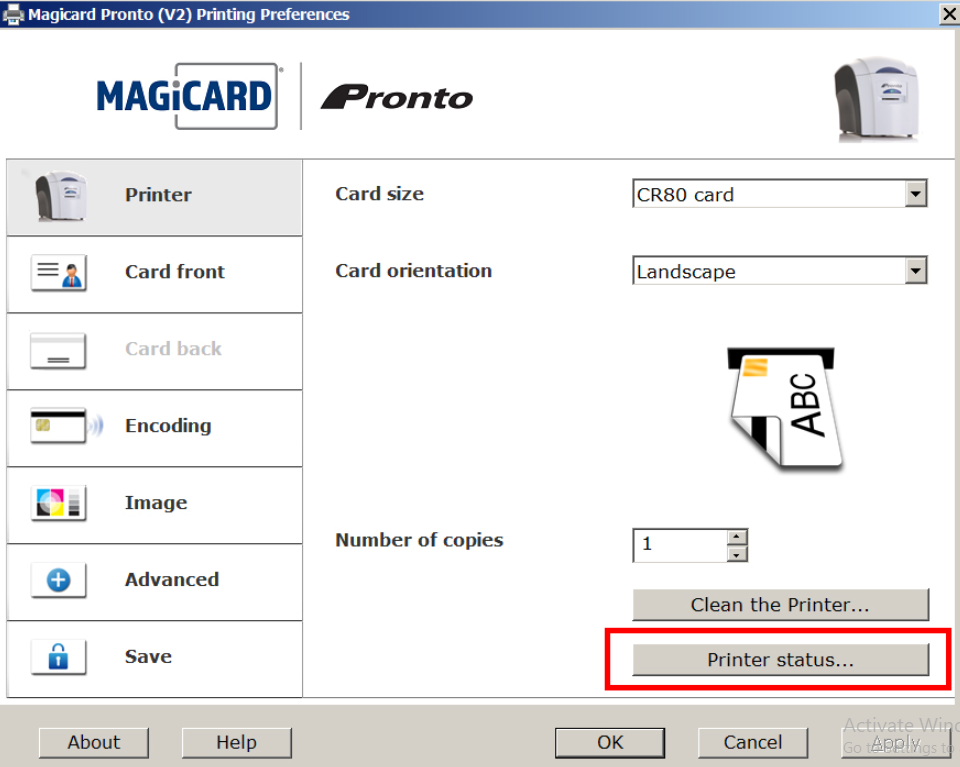
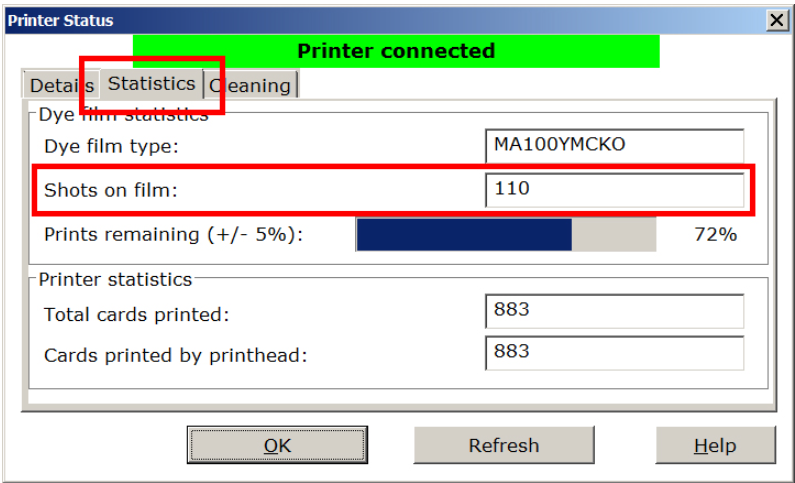
Devices and Printers → Right-click Pronto → Printing Preferences → Printer Status
Click Statistics tab to see Ribbon Balance (prints remaining)
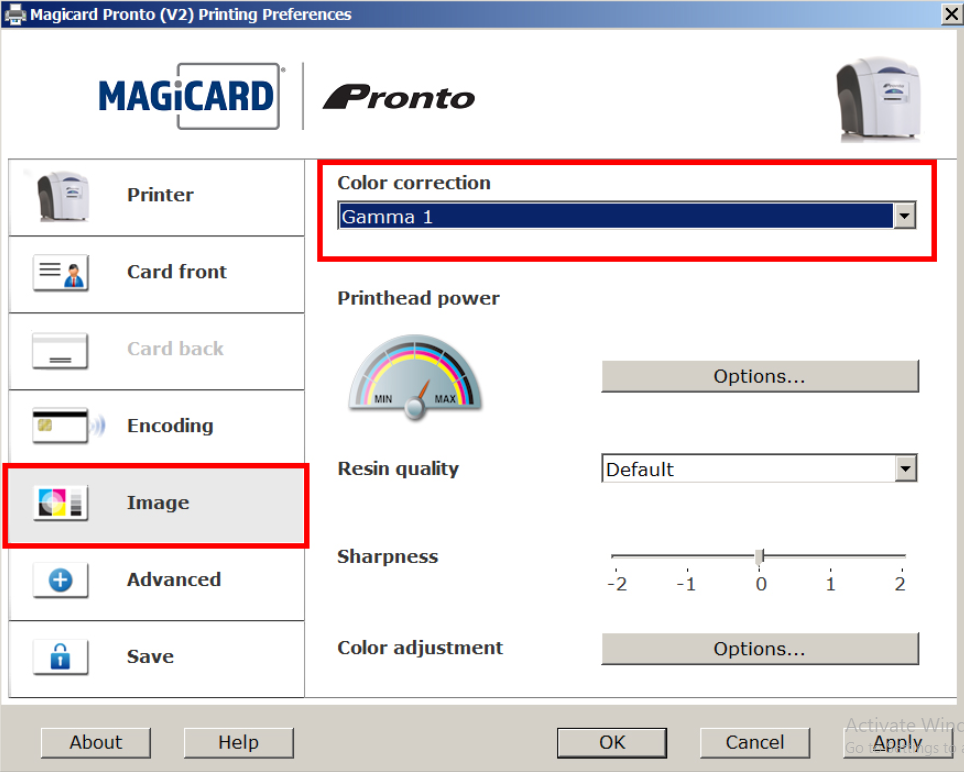
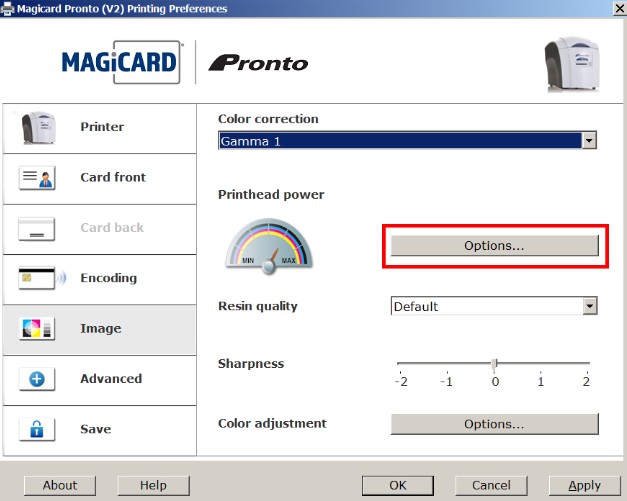
- Printing Preferences → Image tab → Color Correction = Gamma 1
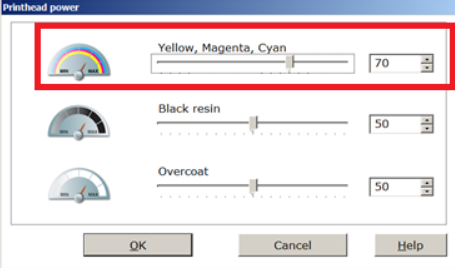
- If still faded → Printhead Power Options → Set YMC to 70
⚠️ Do NOT exceed 90 - will cause ribbon breakage from heat!
- Support Utility → Statistics/Commands →
DEALERSERVICEON → Send
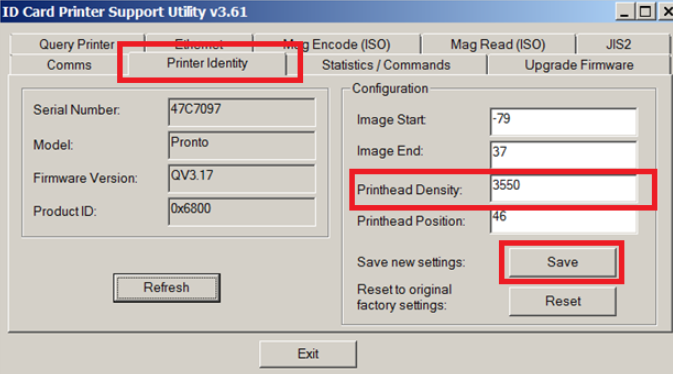
- Printer Identity tab → Increase Printhead Density by 200 → Save
⚠️ Do NOT exceed 200 points - may damage printhead!
- Statistics/Commands →
DEALERSERVICEOFF → Send
Automatic (Recommended)
- Download Support Utility from support.magicard.com/downloads/
- Connect printer via USB and power on
- Open Utility → Click Firmware Update
- If update available, click Download and Install
- Restart printer when complete
Manual
- Download .bin from support.magicard.com/downloads/firmware/
- Support Utility → Advanced Tools → Update Firmware from File
- Browse to .bin file → Follow prompts → Restart
💡 Tips: Update driver first | Use direct USB (no hub) | Don't disconnect during update
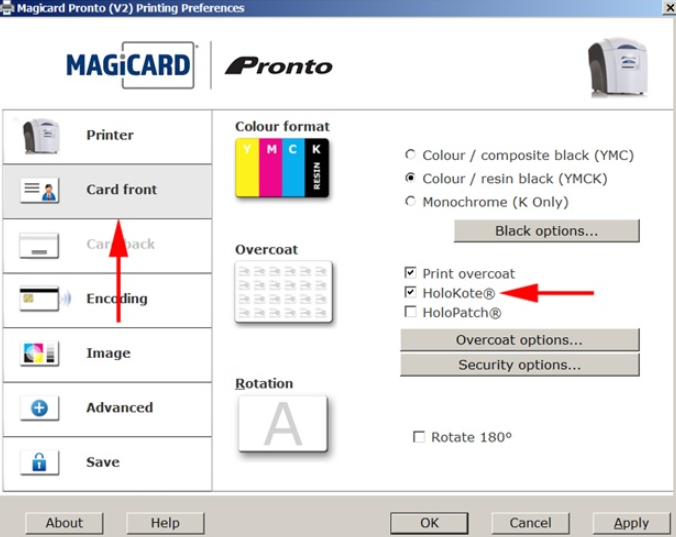
On PC
Printing Preferences → Card Front → Check HoloKote → Apply
On Mac
Print → Advanced Options → Printer Features → Card Front 1 → Print with HoloKote Image
| Type | Details |
|---|
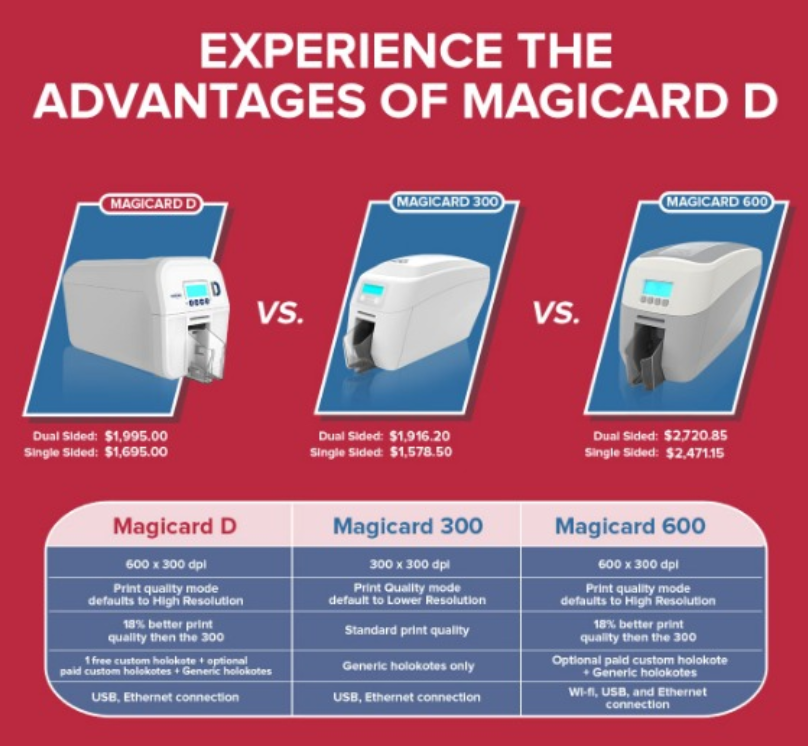
| Generic HoloKote | Built into ALL Magicard printers |
| Custom HoloKote | Magicard D & 600 only
Magicard D: 1 FREE + up to 9 more @ $615 each |
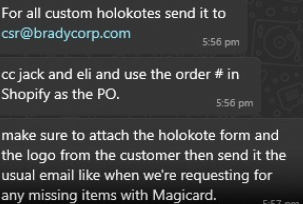
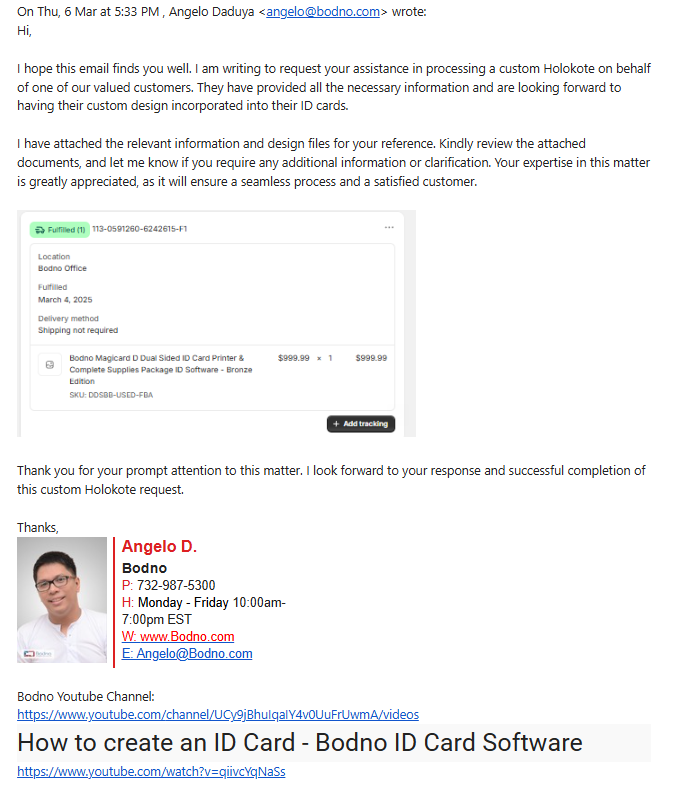
Sample Email Thread - Custom HoloKote Request
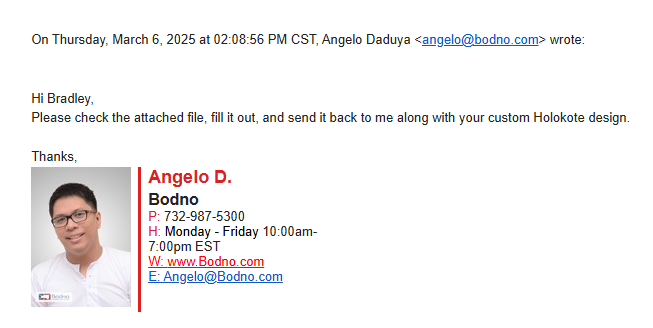
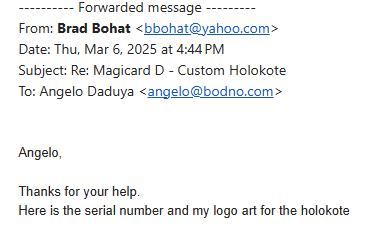
1. Initial Request to Magicard:
2. Send Form to Customer:
3. Customer Response:
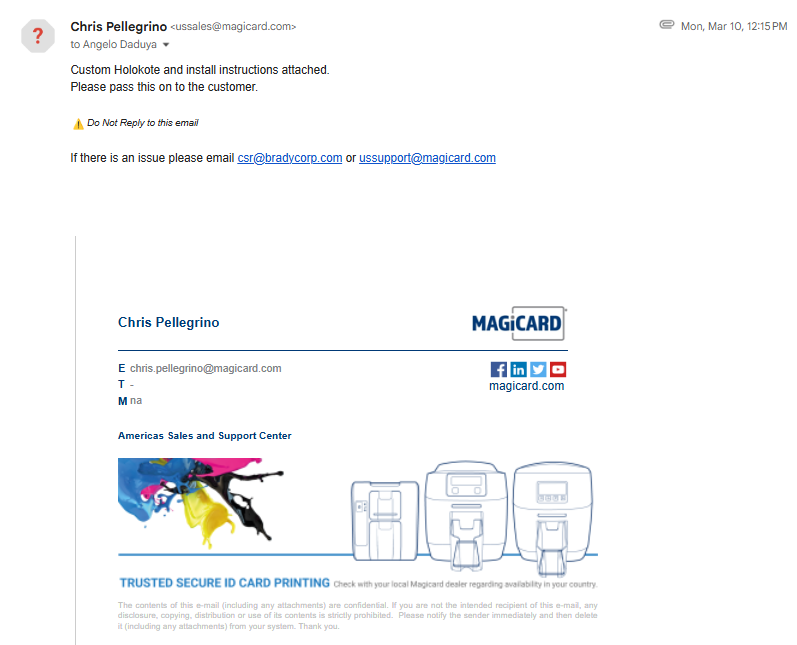
4. Magicard Delivers Custom HoloKote:
- Printing Preferences → Printer Upgrades → HoloKote → Manage HoloKote
- Move 'Available' HoloKote into a 'Printer Slot'
| Feature | Description |
|---|
| Holograms | 3D light-based images. Generic = standard patterns; Custom = unique (setup fee required) |
| HoloKote | Magicard exclusive. Watermark-like design applied during printing. |
| UV Printing | Invisible ink visible under UV. Requires UV ribbon. (Seaory, Fargo HDP) |
Brand Notes
- Seaory R-Series: Laminator (July 2025) enables hologram laminates. ~$7,500 setup + 100 roll min
- Magicard D: 1 free custom HoloKote, up to 10 total ($615 each). Tied to printer.
- Evolis/Zebra: Specialty ribbons create HoloKote-like designs, but less secure
| Model | Pages | Manual |
|---|
| Pronto | 27-31 | pronto_user_manual_issue_2_07.pdf |
| Pronto 100 | 30-42 | Pronto_100_User_Manual_Issue_1.03.pdf |
| Enduro 3E | 32-38 | enduro_3e_user_manual_issue_1_01.pdf |
| 600 | 50-62 | 600_User_Manual_Doc4527_Issue1.03.pdf |
| 300 | 38-50 | 300_User_Manual_Doc4747.Issue1.05.pdf |
| D | 44-56 | D_and_K_User_Guide_Doc5068_Issue1.02.pdf |
| Power | Properly grounded |
| Temperature | +10 to 30°C (50 to 86°F) |
| Humidity | 20-70% relative humidity |
| Protection | From sunlight, chemicals, temperature changes |
| Space | Sufficient for opening cover and cable access |
End of Day 1 Training Manual